Chapter 2
The studio at a glance
Workspaces, the main panels, the command palette and the status bar.
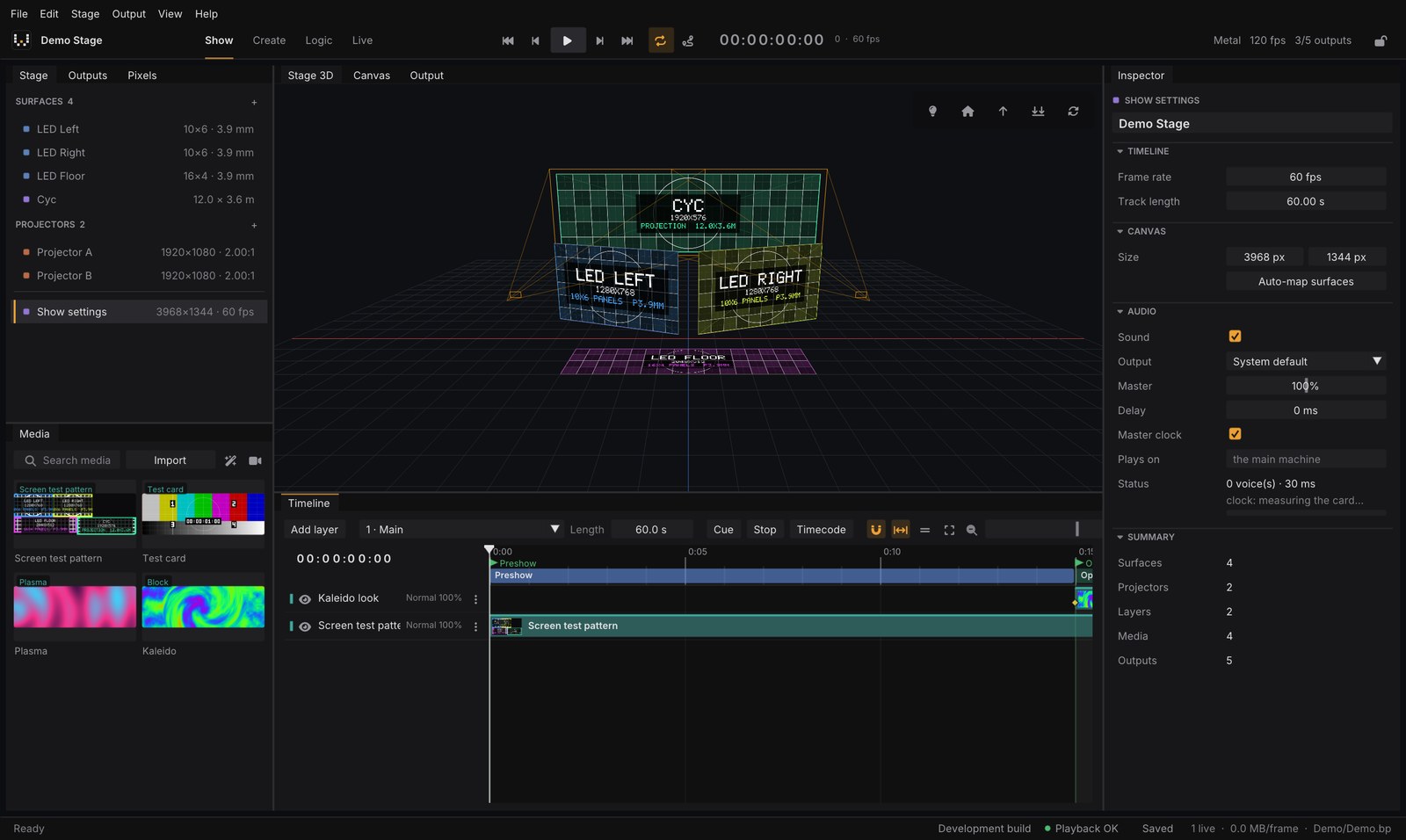
pixelwright-studio is where you build and run the show. It is one window with docked panels, a top bar and a status bar.
The top bar
From left to right:
- the show name;
- the four workspaces: Show, Create, Logic and Live;
- the transport: go to start, previous frame, play/pause, next frame, go to end and loop;
- the timecode of the playhead, with the frame number and the show frame rate;
- the renderer (Metal, Direct3D, Vulkan…), the studio’s own fps and how many outputs are open;
- the Show Lock padlock (see Running the show).
Four workspaces
Each workspace shows only the panels for one job. Switch with the buttons in the top bar or with the keyboard:
| Workspace | Keys | What for |
|---|---|---|
| Show | Ctrl+1 |
Build the show: stage, outputs, media, timeline, inspector |
| Create | Ctrl+2 |
Make generative content with node Blocks |
| Logic | Ctrl+3 |
Interactive installations: states, touch zones, schedules |
| Live | Ctrl+4 |
Run the show: cues, tracks, program monitor, timecode, log, control, cluster |
On a Mac, Ctrl shortcuts are Cmd.
The Show workspace panels
- Stage (left, with the Outputs and Pixels tabs): the surfaces (LED walls, projection screens, 3D models) and the projectors of your show.
- Media: the library of clips, images and sounds, with an Import button.
- Centre views:
- Stage 3D: the stage in 3D. Drag to orbit, right-drag to pan, wheel to zoom, click to select.
- Canvas: the 2D composition that feeds the screens.
- Output: the exact picture of one output.
- Timeline: layers, clips and cues over time.
- Inspector (right): the settings of whatever is selected. With nothing selected it shows the Show settings: frame rate, duration, canvas size and audio.
The command palette
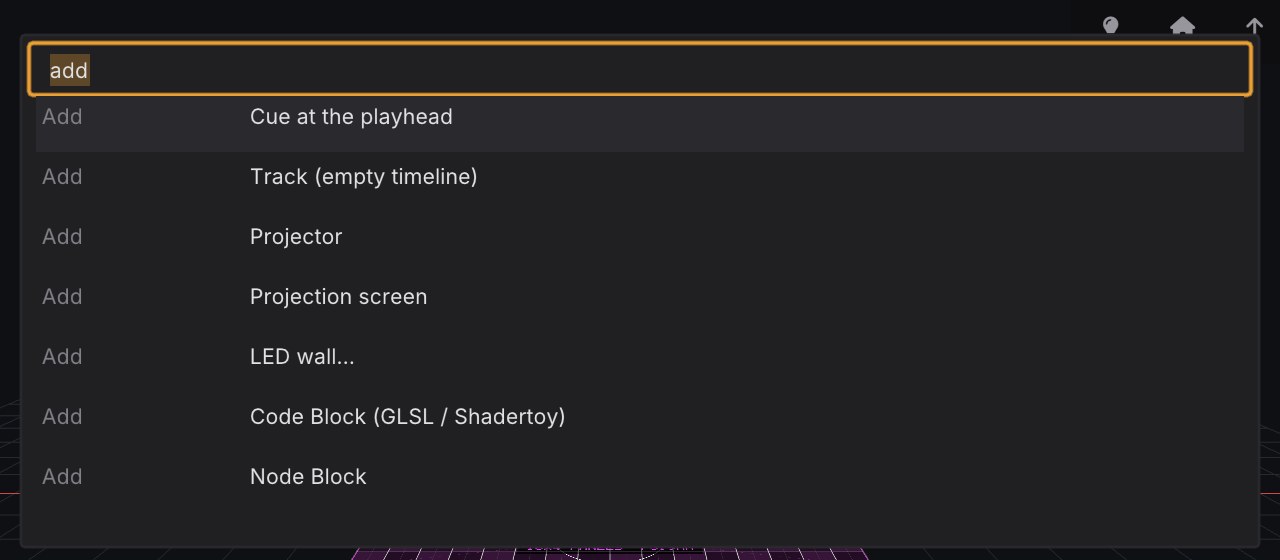
Press Ctrl+K (Cmd+K on a Mac) and type. The palette finds workspaces, transport and GO/BACK, every cue and track by name, master and blackout, save and Show Lock, and it adds things: cues, tracks, projectors, screens, LED walls and Blocks. Loose words work: “tr enc” finds “Play track 3 Encore”.
The status bar
The bar at the bottom tells you, at a glance, whether the show is healthy:

- Licence: Learn · watermark, 1 output, your plan, or Development build — unlicensed on test builds.
- Playback health: Playback OK in green. It turns amber with dropped frames/s, late frames/s or Decoder behind, and red with Damaged media. See Troubleshooting.
- Saved or Unsaved.
- how many layers are live, how much video is uploaded to the GPU per frame, and the show file.
Handy keys
Open the full list with Help → Keyboard shortcuts. The ones you will use every day:
| Keys | Action |
|---|---|
Space |
Play / pause |
Enter / Shift+Enter |
Cue GO / BACK |
← / → |
Previous / next frame (Shift: 1 second) |
Home / End |
Go to start / end |
Ctrl+S |
Save |
Ctrl+I |
Import media |
Ctrl+Z / Ctrl+Shift+Z |
Undo / redo |