Chapter 7
Generative content and Blocks
A first look at the Create workspace, where you build generative content with nodes or code.
A Block is generative content you build yourself. You make it in the Create workspace and, in the Show workspace, it plays on a layer like a video.
The Create workspace
Press Ctrl+2.
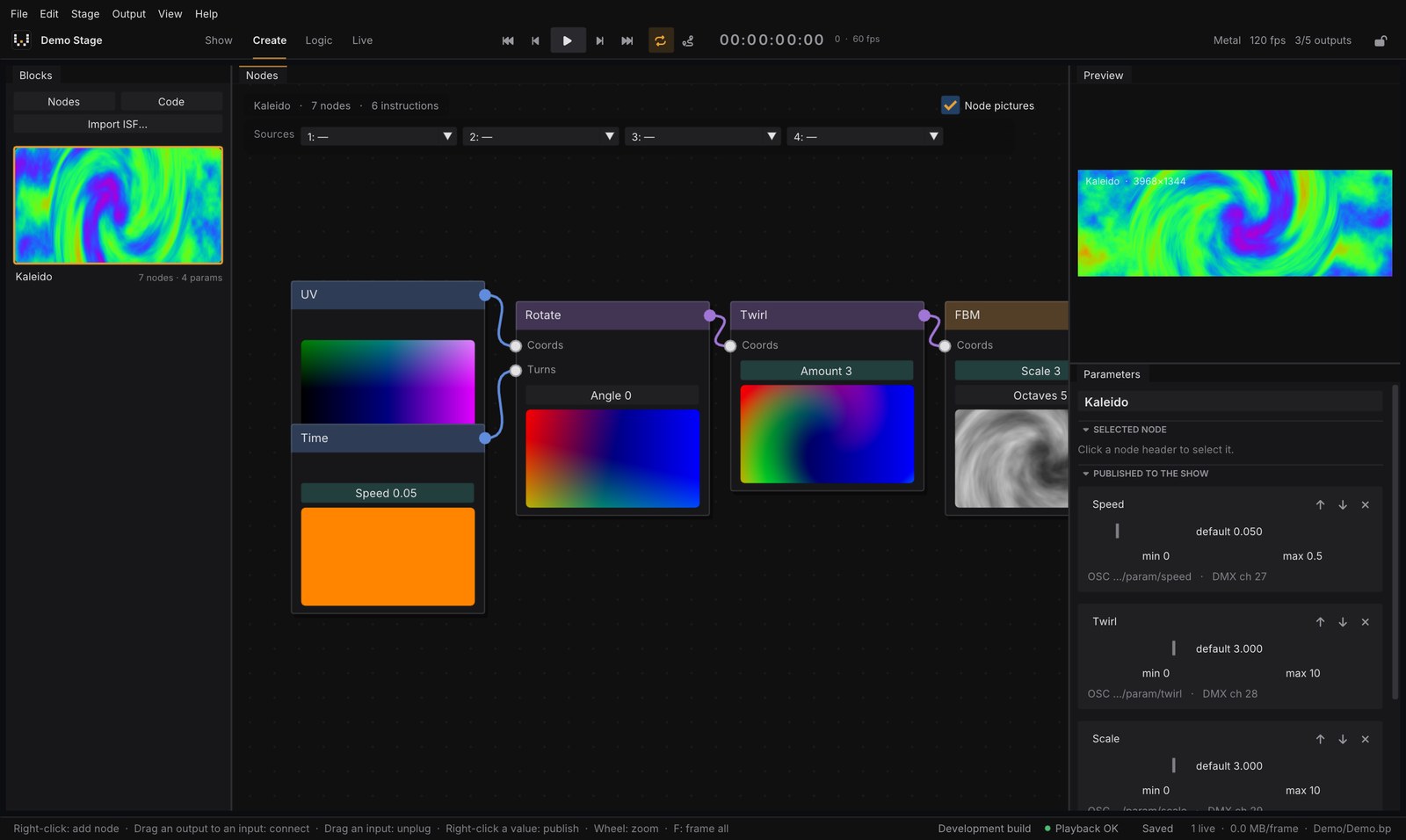
- Blocks (left): your Blocks. + Nodes starts a node Block, Code a shader Block, and Import ISF… turns an ISF shader (Interactive Shader Format) into a Block.
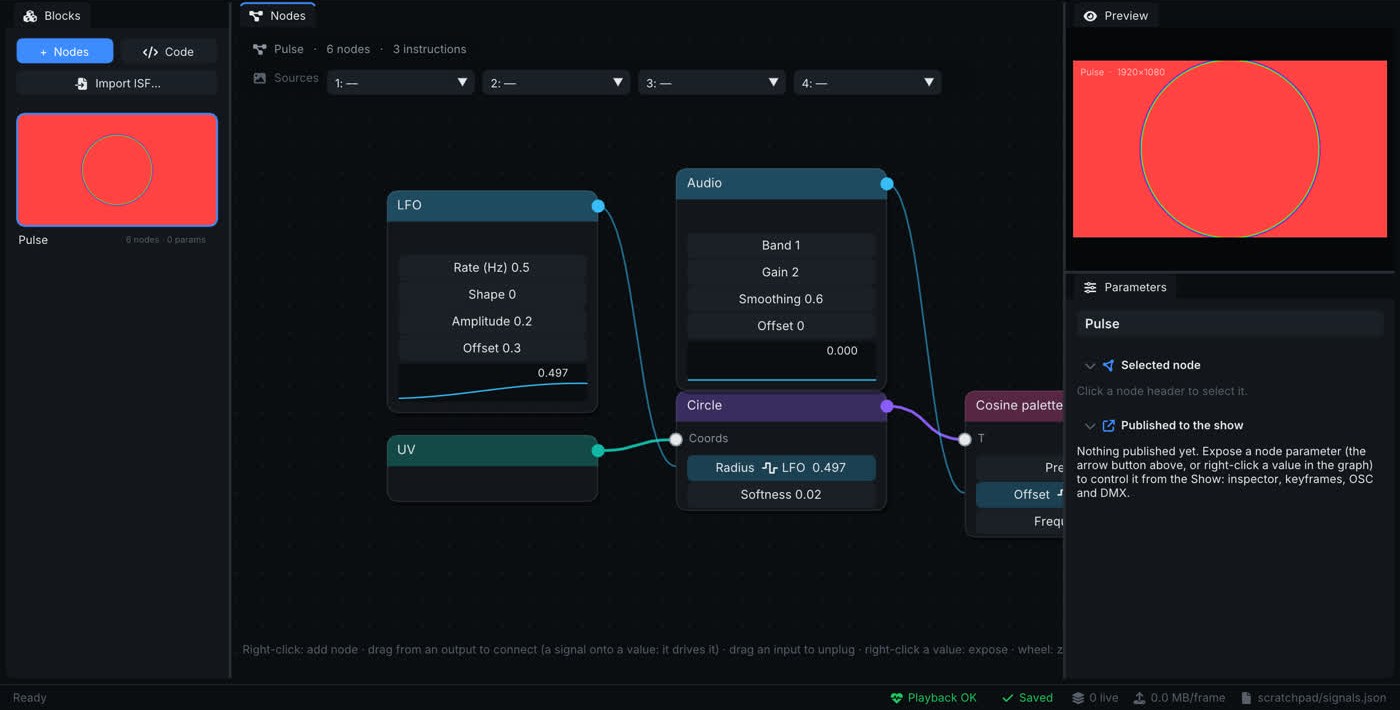
- Nodes (centre): the graph. Every node shows its own picture (Node pictures), so you see what each step does.
- Preview and Parameters (right): the result, the selected node, and the parameters published to the show.
Build a node Block
- Click + Nodes.
- Right-click the empty graph to add a node.
- Drag from a node’s output to another node’s input to connect them. Drag an input away to unplug it.
- To control a value from the show, right-click it → expose. It appears under Published to the show with its default, min and max.
There are about 40 nodes: inputs (UV, Time), maths, patterns (noise, FBM, Voronoi, waves…), coordinates (polar, rotate, kaleidoscope, twirl), colour (palettes, HSV, colour correct), textures (cameras, NDI, web pages or other layers as a source, feedback, blur, edges), keying (chroma and luma key), GPU particles and a 3D scene. Editing never compiles shaders, so playback never stutters while you work.
Signals
Signal nodes give one number per frame: an LFO, audio level (audio reactive), MIDI CC, Signal In (set from outside by OSC, the API, Companion, MIDI or DMX) or the timeline. Connect a signal to any value and it drives it.
Code Blocks
Code creates a Block written as a shader: vec4 effect(vec2 uv), or a Shadertoy pasted as it is (mainImage). It recompiles when you stop typing (or with Ctrl+Enter). While it compiles, or if it has errors, you keep seeing the last version that worked, and errors show your line number.
Use a Block in the show
- Go back to Show (
Ctrl+1). - Put the Block on a layer: + Layer → From the library, or drag it from the Media panel to the timeline. (+ Layer → Node Block and Shader (code) create a brand-new Block on a layer.)
- Select the layer: the published parameters appear in Parameters & keyframes. Each layer keeps its own values, and they can be keyframed on the timeline.
Published parameters can also be driven live by OSC (/bp/layer/<layer>/param/<name>), DMX and MIDI.
Going further: the Block system also does GPU particles (a million at 120 fps on an M4 Pro), PBR 3D scenes, glTF models and multi-pass ISF. This chapter is only an introduction.